4. Using ClearCloud/NextCloud
Warning
Under construction
ClearCloud is a NextCloud installation on a server. The CleaRCloudis just a name for the server. For DigiCleaR you can use a NextCloud server whatever is the name. For NextCloud administration and installation refer to the Administration documentation of DigiCleaR
Once everything is set on the server then it is available for machine manager as a widget in the templates of the machines.
The main function expected is to upload files from DigiCleaR (for exemple pictures) on the NextCloud server and to share these (pictures) with you personal account on the NextCloud server. The path to the (pictures) will be /home/DigiclearFolder/MachineName/ProjectName/SampleName/... where:
DigiclearFolder = the name of the folder where all the shared objects are stored. This name is defined by the server administrator in the DigiCleaR configuration files
MachineName = the name of the machine. It is the short name and not the description
ProjectName = the name of the acronym of the project
SampleName = the name of the sample and not the description.
With this organisation, it is possible to store and order files with several projects and several samples by project for one machine. In the configuration file on the server of DigiCleaR it is possible to change the rights of the users on the files (ask you administrator).
4.1. How to use the Cloud in templates
Once your Cloud is configured and available, DigiCleaR can upload files to the Cloud and share files with the users. When you are manager of machines you can enable Cloud upload by adding a widget in one template of your machines. Simply drag and drop the upload widget (uploader) to your template. It can be either in the Sample section or in the Machine section.
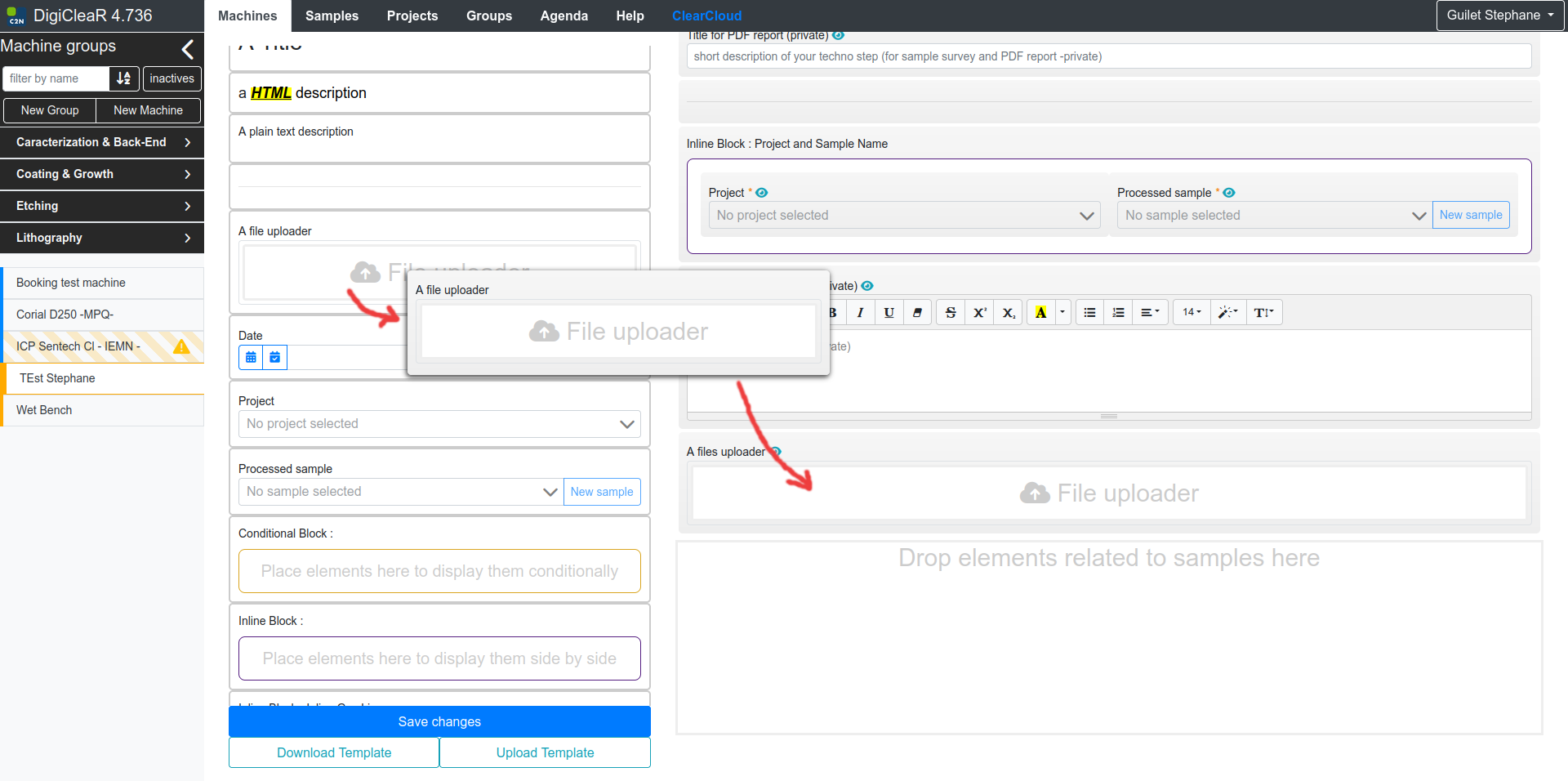
Once the widget uploader is drop in the template, and if you activate this template then all the users of the machine will be able to use the cloud. They can store files when using the machine. The files will be linked to the machine, the project and the sample. This widget has few parameters to set.
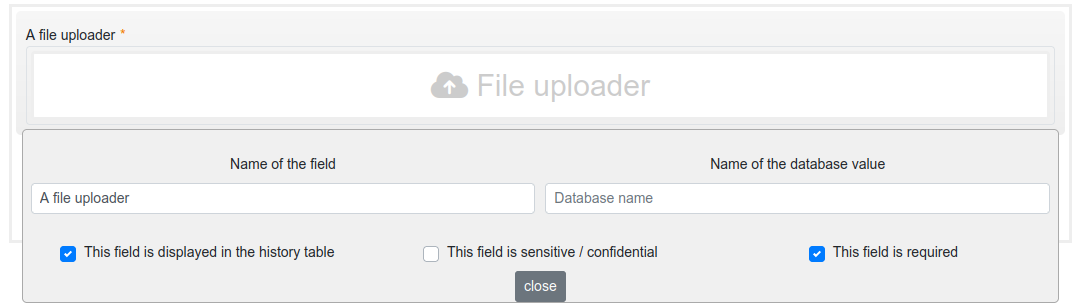
All the parameters are common to all widgets available to define a template.
Name of the field : this string value will be chown on the left side of the widget in the process form.
Name of the database value : name of this widget as a value in the database. The name must be unique in the same template.
This field is display in the history : if activated then this field will be shown in the table of the history for machines, samples or projects.
This field is sensitive/confidential : if activated then this field/widget value won’t be shown to other users of the machine or to other people that do not have rights on this sample/process line (users or managers)
This field is required : if activated then it is mandatory to use this field when creating a new process line.
4.2. Where are the files after uploading ?
When you activate a template for a machine with a uploader widget then a`` a user you can upload files by drag’n’drop on the process entry form. The uploade widget will show the progress of the upload. The size of the files is limited to 1 GB.
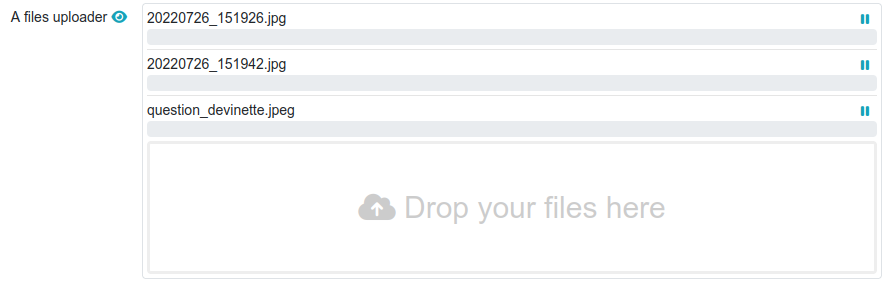
Once the user has uploaded files then the files are stored on the account digiclear created on the nextcloud. The users can find files on their own account on nextcloud under the directory Digiclear Machines (default name, can be changed by your administrator).
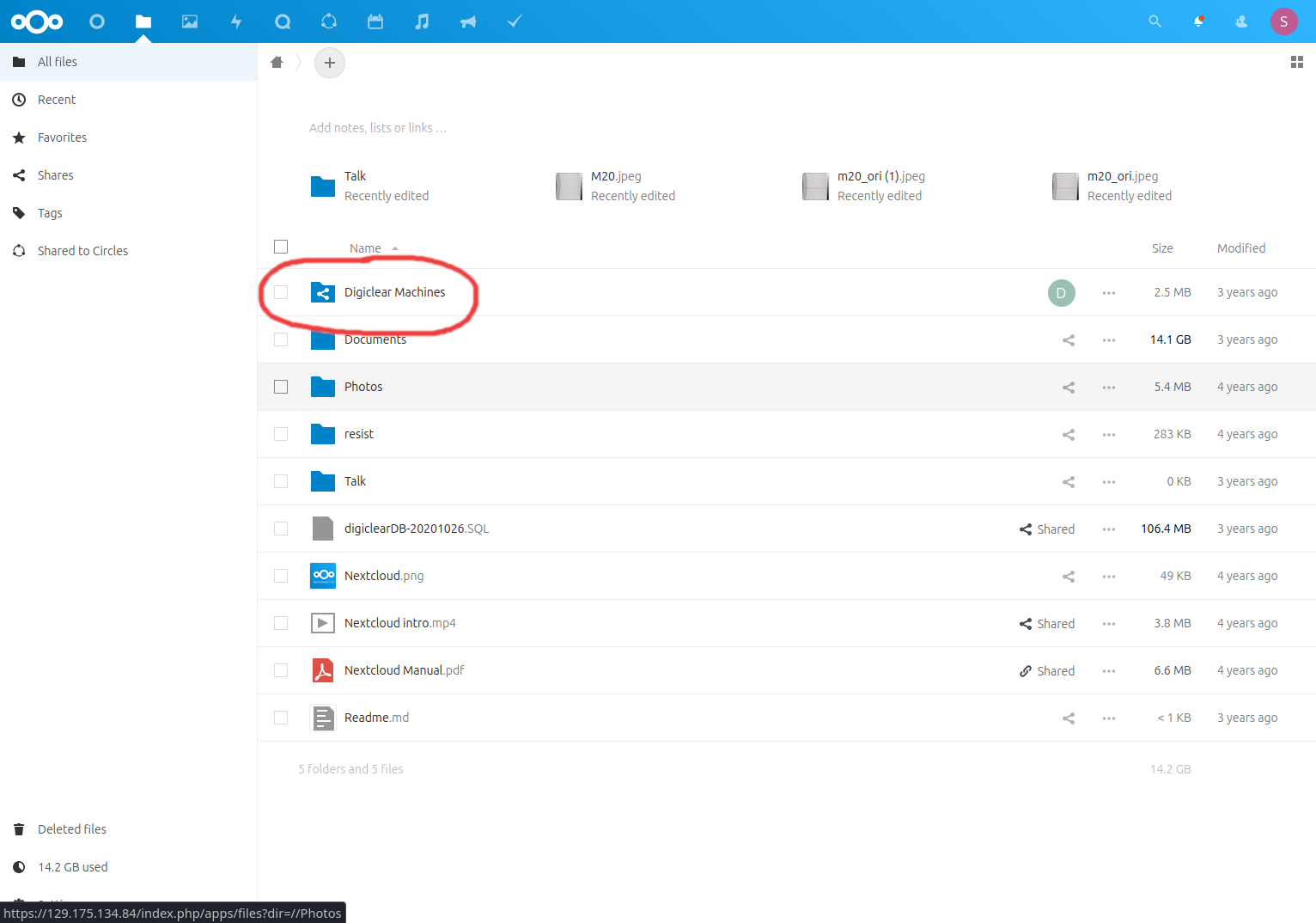
By default, you can reshare and read the files as users. If you want to know more ask to the administrator of DigiCleaR if the rights have been modified (update, create, delete).
4.3. Test for using GIF and movie MP4
Herafter you should see a GIF animated

COOL isn’t it ?
Is that good enough ?