1. Getting started
1.1. Logging in
Any user with an account registered to the university should be able to log on to Digiclear. This means that if you have an email account like first.lastname@universitydomain.fr, you can log on.
Note
This means that you do not need to apply to get access to the website. Your user profile in Digiclear will be created automatically when you log in for the first time
You can access Digiclear from any web browser.
You can log in using the button on the upper right corner.

This should take you to the Central Authentication Service of the University.
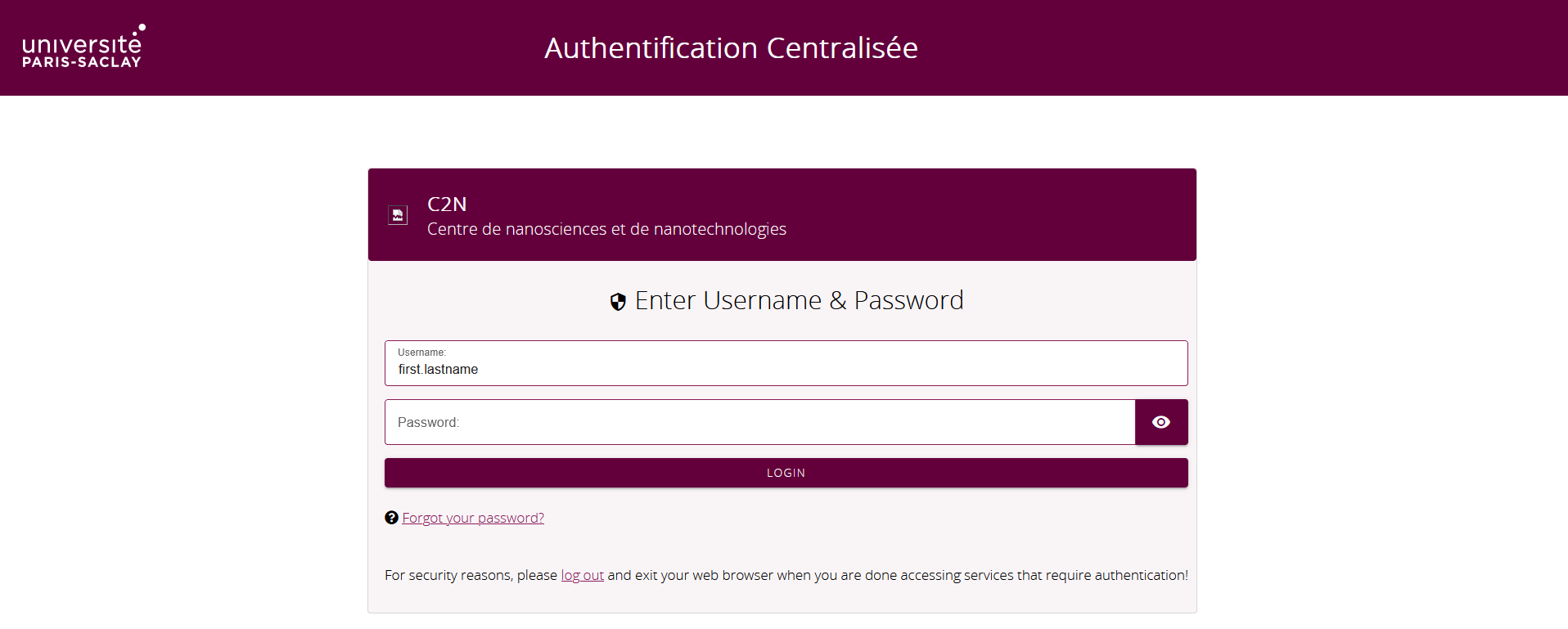
Your credentials are the same than the webmail ones. After this, you should see your name in the upper right corner of the Digiclear homepage instead of the Sign in button.
1.2. First notions
1.2.1. Homepage

Let us inspect the top menu bar quickly:
The leftmost part tells you about the current Digiclear version, and brings you to the homepage.
The following items, Machines and Samples are the ones that we will cover in the first part. They link to tabs where you can see respectively all the machines, or samples, that you have access to.
The Project tab shows all the projects in which you have been declared as a user or manager.
Groups is a more advanced notion that will be covered in a later part.
Booking will soon be available. For now, it is performed on the LIMS platform instead.
The Help tab shows the initial Wiki documentation for Digiclear.
Finally, ClearCloud links to a cloud server dedicated to store data, images etc. relevant for your cleanroom fabrication. See the tutorial on Using ClearCloud/NextCloud.
1.2.2. Roles
A quick word now about user roles in Digiclear. Depending on your work in the cleanroom, you can have different status regarding a machine, a sample, or even a project:
Observer: this is the basic role, with no actions allowed. It simply allows you to see an item (say, a machine, or a sample) in Digiclear. You can read all public information about it, but cannot perform a process step, or change any setting.
User: this role allows you to perform a process step on the item. But you cannot change its settings. Typically, as a cleanroom user, you will be declared as user for all the machines that you have been trained for.
Manager: this role allows you to further change all settings regarding the item. Typically, as a cleanroom user, you will be the manager of all your samples.
Easy, right? So let us move on to the basic steps for using Digiclear.